



EU (current)

New look and feel in itslearning

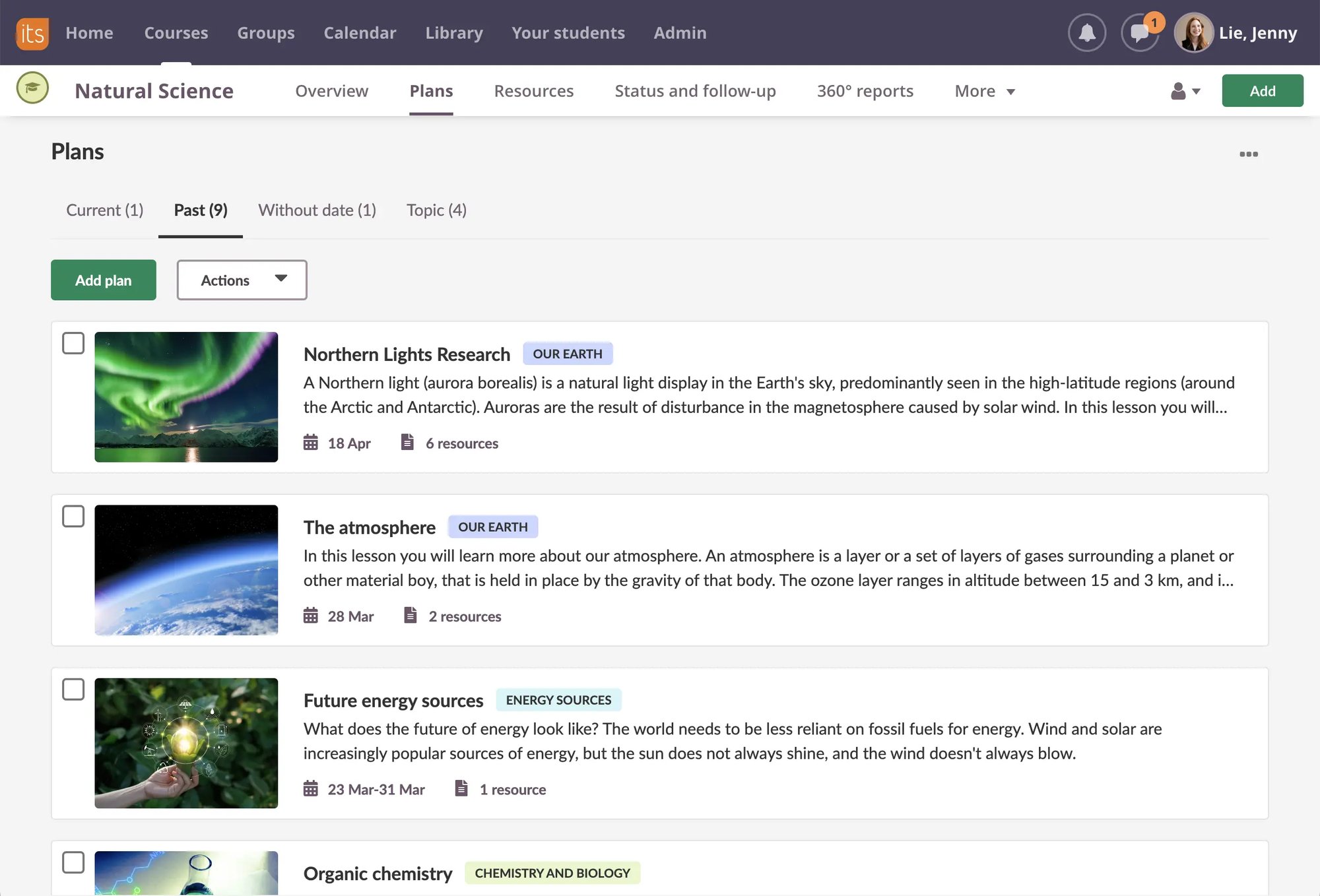
itslearning has been updated with a new interface and simplified and improved navigation. We call it a design refresh, but what does it mean in plain English? And what's in it for you?

First of all, the old look has been replaced with a brand new one. This means that colours, icons, menus, tabs and background images have all been changed. Most of the changes are just cosmetic and don’t affect the way itslearning works. It looks different, but you'll still find the same features and your old content. We've just changed the wrapping.

Secondly, you’ll find navigating around itslearning easier. We’ve changed and rearranged some of the menus to make the navigation easier and more intuitive. Here are some of the most important changes:

Drag and drop

Managing course and project content will be much easier. We've made a brand new tree menu that supports drag and drop. To move an element to another folder, left click the element, drag it over to another folder, and then drop it. You can do the same to rearrange an element within a folder.

Maximised workspace

Many of our users have asked for a larger workspace, and now it's here. You can now hide both the top menu and the left menu to make the work area bigger. A simple click will get the menus back.

Floating content blocks and menus

In order to support the wide variety of screen sizes – from high resolution wide screens to narrow mobile devices – we have introduced collapsible columns when resizing the browser window. This means that whenever you view a page with several blocks of content – such as the dashboards and menu pages – the number of columns on the page will increase or decrease depending on the size of the screen. If you have a narrow screen, the sections will be displayed in a single column, and you’ll see more columns on wider screens.

So, if you notice a different looking itslearning when you log in in mid-November – don't worry, we've just changed it for the better.